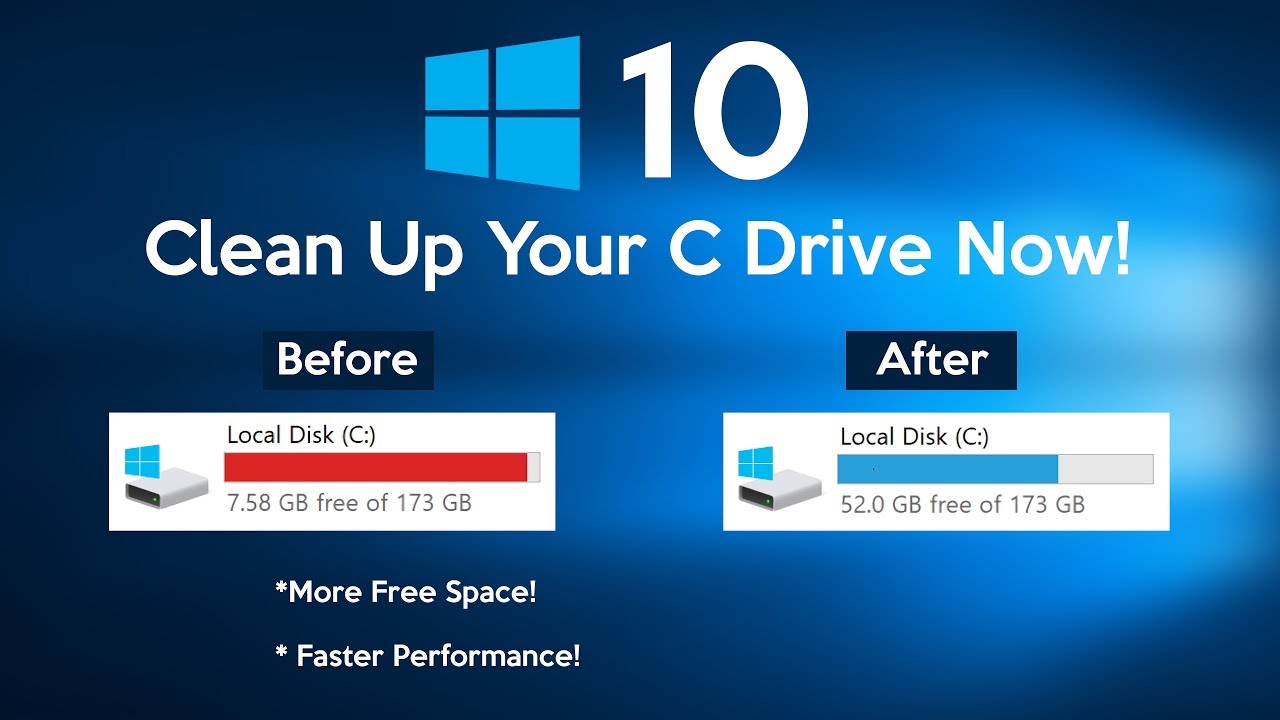
Cleaning the hard drive of your computer can help improve its performance. Here are some steps you can take to clean your drive C in Windows:
-
Uninstall unnecessary programs: Go to the Control Panel and use the Programs and Features applet to remove any programs that you no longer use or need.
-
Delete temporary files: As I mentioned earlier, you can use the Disk Cleanup tool or manually delete temporary files from the temp folder to free up space on your hard drive.
-
Empty the Recycle Bin: The Recycle Bin takes up space on your hard drive, so be sure to empty it regularly to free up space.
-
Defragment your hard drive: Defragmenting your hard drive rearranges the data on your hard drive so that it is stored more efficiently, which can improve the performance of your computer. To defragment your hard drive, go to the Start menu and type “defragment” into the search bar. Click on the “Defragment and Optimize Drives” app to open it, then select the drive that you want to defragment and click the “Optimize” button.
-
Remove unwanted files: If you have any files that you no longer need, such as old documents or downloaded files, consider deleting them to free up space on your hard drive.
-
Use a disk cleanup tool: There are many third-party disk cleanup tools available that can help you identify and delete unnecessary files from your hard drive.
By following these steps, you can help improve the performance of your computer by cleaning the hard drive and freeing up space.
 Learners Family
Leave a comment