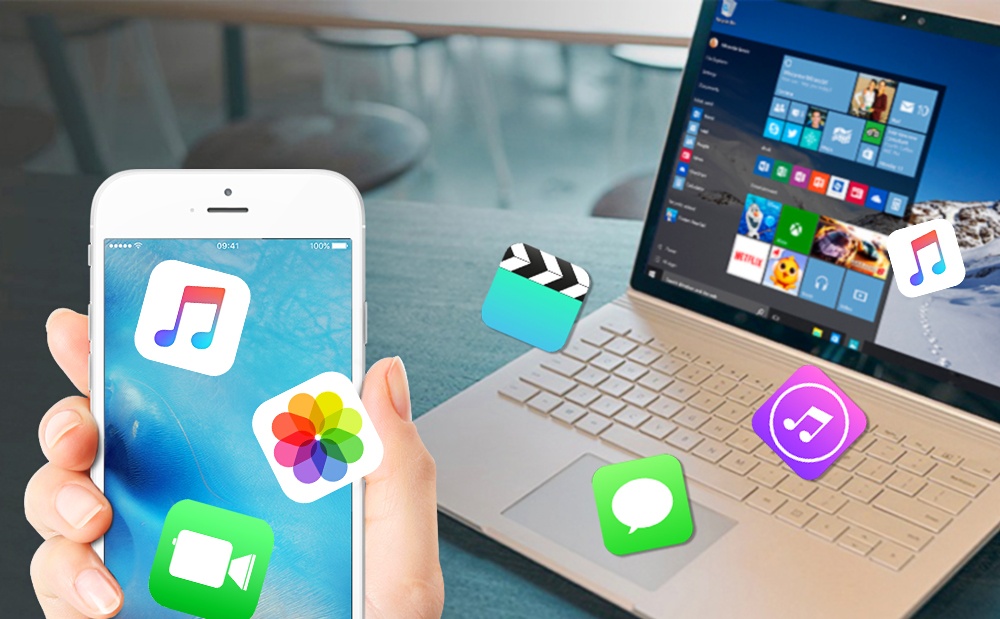
There are several ways to transfer files from an iPhone to a Windows PC:
-
Use iTunes: Connect your iPhone to your PC with a USB cable, and open iTunes. From the left sidebar, select your iPhone. Click on the “File Sharing” section in the main window, then select the app on your iPhone that contains the files you want to transfer. Drag and drop the files from the app’s Documents list to a folder on your PC.
-
Use iCloud: If you have iCloud enabled on your iPhone, you can transfer files to your PC by going to the iCloud website (www.icloud.com) and logging in with your Apple ID. From there, you can access your iCloud Drive and download the files you want to your PC.
-
Use a cloud storage service: Another option is to use a cloud storage service like Google Drive, Dropbox, or OneDrive to transfer files from your iPhone to your PC. Simply upload the files to the cloud from your iPhone, and then download them to your PC.
-
Use a file transfer app: There are also various file transfer apps available for iPhone that allow you to transfer files directly to your PC over a WiFi connection. Some options include AirDrop, SHAREit, and Xender.
 Learners Family
Leave a comment